
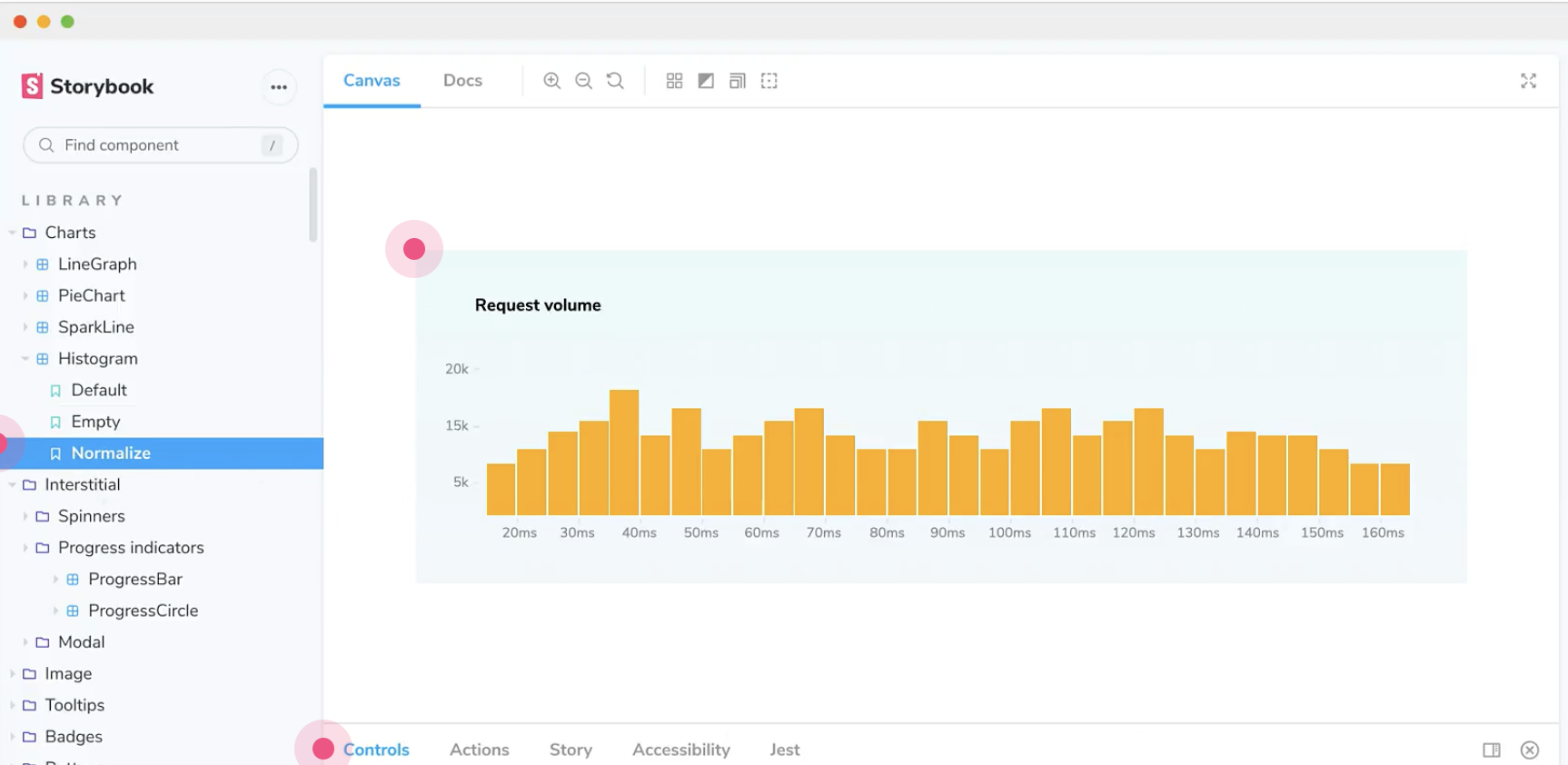
As a frontend developer, often when designing UI components, I face the gruesome task of testing UI components before their integration with the actual project. Creating pixel-perfect design takes time, even more so when we have to make sure that each individual aspect of the UI component works.
In highly modular project architecture, it’s often that the UI components are made according to the creative design guidelines. This means that there would definitely be situations where complex layouts and high-level designs need to be thoroughly tested before integration. To test such components, mock data, or development data can be generated either through mock files or database calls that maintain such data.
However, that is not the only aspect of testing such components. We need to be able to test real-world applications of these UI pieces. We also need to be able to navigate through all levels of components. Make modifications to their params to test several conditions such as input and even be dynamically able to check for other UI aspects such as theming, individual and combined behavior, etc!
Good god! That sounds like a lot of work for a little UI developer. If someone actually goes through that approach, I suggest they get at least twice their current salary to be adequately compensated for such a mammoth effort. Thankfully though, “Storybook”, an amazing tool for UI development solves our task!

The Storybook is a tool for UI development. It isolates the components to make testing faster and easier. This means the developers can make every component individually and focus on one component at a time. Storybook also provides features such as being able to have addons for different aspects of testing, such as themes, source code, param controls, tests, etc!
So in conclusion this super awesome tool makes the life of a developer easier and clutter-free. Storybook allows frontend developers to ignore the intricacies of setting up a complex tech stack.
So let’s learn a bit more about Storybook.
Installation
Installing Storybook is as easy as using npm.
To install npm, use the following command:
| # Add Storybook: npx sb init |
This will initialize the Storybook for you in your project and perform the following:
- 📦 Install the required dependencies.
- 🛠 Setup the necessary scripts to run and build Storybook.
- 🛠 Add the default Storybook configuration.
- 📝 Add some boilerplate stories to get you started
Using storybook
Stories in Storybook represent a completely rendered isolated component. Stories allow us to pass mock data and render an isolated UI component just like the way we create any other react component.
Let’s understand the parts of a Story by studying the following sample react Button component.
import React from 'react';
import PropTypes from 'prop-types';
import './button.css';

/**
* Primary UI component for user interaction
*/
export const Button = ({ primary, backgroundColor, size, label, ...props }) => {
const mode = primary ? 'storybook-button--primary' : 'storybook-button--secondary';
return (
  <button
    type="button"
    className={['storybook-button', `storybook-button--${size}`, mode].join(' ')}
    style={backgroundColor && { backgroundColor }}
    {...props}
  >
    {label}
  </button>
);
};

Button.propTypes = {
/**
  * Is this the principal call to action on the page?
  */
primary: PropTypes.bool,
/**
  * What background color to use
  */
backgroundColor: PropTypes.string,
/**
  * How large should the button be?
  */
size: PropTypes.oneOf(['small', 'medium', 'large']),
/**
  * Button contents
  */
label: PropTypes.string.isRequired,
/**
  * Optional click handler
  */
onClick: PropTypes.func,
};

Button.defaultProps = {
backgroundColor: null,
primary: false,
size: 'medium',
onClick: undefined,
};
As we can see, this is an ordinary button. To test such a component, we can create a story using Storybook.
A story captures the rendered state of a UI component. Developers write multiple stories per component that describe all the “interesting” states a component can support.
Generally, once the Storybook is initialized we get the following structure:

The .storybook folder allows us to modify or add configurations to the Storybook.
In main.js, under the “stories” key, we can add the path structure for Storybook to identify all the story files present in the project. This way we can be assured that whenever we run Storybook, we are able to find and check all the stories made for our components.
We can further add “addons”, which provide enhancements to what we can view and do with our stories.
At last, there are configurations available to build the project with a storybook.
We can run Storybook in our project with the following command:
| # running via npm npm storybook # or via yarn yarn storybook |

We can see the homepage of the Storybook running on localhost as above.
Now let us create a Story.
As I mentioned earlier, creating a Story is as easy as creating any react component. We can know more about it by understanding the structure of a Story.
import React from 'react';

import { Button } from './Button';

export default {
title: 'Example/Button',
component: Button,
argTypes: {
  backgroundColor: { control: 'color' },
},
};

const Template = (args) => <Button {...args} />;

export const Primary = Template.bind({});
Primary.args = {
primary: true,
label: 'Button',
};

export const Secondary = Template.bind({});
Secondary.args = {
label: 'Button',
};

export const Large = Template.bind({});
Large.args = {
size: 'large',
label: 'Button',
};

export const Small = Template.bind({});
Small.args = {
size: 'small',
label: 'Button',
};
Every Story has typically 3 parts:
- Story configurations and name
- Story template
- Story args
Story configs: We can define a Story’s name and the component it uses in this section. We can also assign some extra params relevant to the Story. This allows us to create an isolated rendering of a particular type of UI component.
Story Template: A Story template as its name states is the way the component will be rendered. It is a function within which we render the actual component. There can be multiple templates per story catering to different child components or views.
Story Args: The Story args describe the arguments or props that can be passed to a component. This further makes the Storybook easily be able to alter the arguments dynamically to test different states of a component.
In the above example, we can see all these parts in action as we define a Button story.
Exporting the template args allows us to use Storybook to be able to create these variations of stories, and when we finally run the storybook, we get the following result:

As we can see, the story of the button allows us to see how the button will be rendered. We can use the controls section to alter the args and test several iterations of button states all under a single tool!
This eventually saves us a lot of time in testing and also makes sure that we maintain compatibility across multiple screen sizes and user behaviors.
Conclusion
So we finally understand now how to integrate our react UI library project with Storybook and create our first story.
Using Storybook can save teams a lot of time. So the next time you begin such a project, make sure you use the awesomeness of Storybook to the max!
Discover more in the next blog!!
I keep on coding something cool, visit ankush.tech to see what all I am doing!
If you wish to read about my work, here is a book that I published recently – “CSS Bullets, a comprehensive guide to all the CSS you need!“
Interested in React? Learn react from scratch with my book, “REACT Bullets“.
Thanks for sticking around!
Till next time, keep howling, hustling, and learning!
Leave a Reply